One-Page Starter
This page tells you which SaveFlow Lite example to open first.
The short version:
- Start with the Recommended Project Workflow.
- Open Pipeline Notifications when you need save/load lifecycle signals.
- Open C# Workflow if your project uses Godot C#.
- Treat older sandboxes as pressure tests or historical examples, not the main learning path.
Example Map
Start from these public examples:
| Example | Open this scene | Use it to learn |
|---|---|---|
| Recommended Project Workflow | res://demo/saveflow_lite/recommended_template/scenes/project_workflow/recommended_project_workflow_main.tscn | Real project save menu, active slot, room data, player node state, runtime coins, manual save/load/delete, autosave, checkpoint. |
| Pipeline Notifications | res://demo/saveflow_lite/recommended_template/scenes/pipeline_notifications/pipeline_notification_demo.tscn | SaveFlowPipelineSignals, source-level save feedback, final "Data Saved" feedback. |
| C# Workflow | res://demo/saveflow_lite/recommended_template/scenes/csharp_workflow/csharp_workflow_demo.tscn | SaveFlowTypedStateSource, SaveFlowSlotWorkflow, SaveFlowSlotCard, SaveFlowClient.SaveScope(). |
Keep these as QA and historical references:
| Sandbox | Open this scene | Use it for |
|---|---|---|
| Plugin Sandbox | res://demo/saveflow_lite/plugin_sandbox/plugin_sandbox.tscn | Basic scene save/load smoke test and simple authored graph behavior. |
| Complex Sandbox | res://demo/saveflow_lite/complex_sandbox/complex_sandbox.tscn | Mid-size graph pressure test with player/world/party/settings/enemy state. |
| Zelda-Like Sandbox | res://demo/saveflow_lite/zelda_like/scenes/zelda_like_sandbox.tscn | Room switching, runtime entity restore, animation state, and more complex demo save roots. |
Start Here: Recommended Project Workflow
Open:
res://demo/saveflow_lite/recommended_template/scenes/project_workflow/recommended_project_workflow_main.tscn
Use this scene as the main learning path.
The scene starts from a main hub. The main scene data records which subscene the player is currently in, while each room owns its own room-level save data.
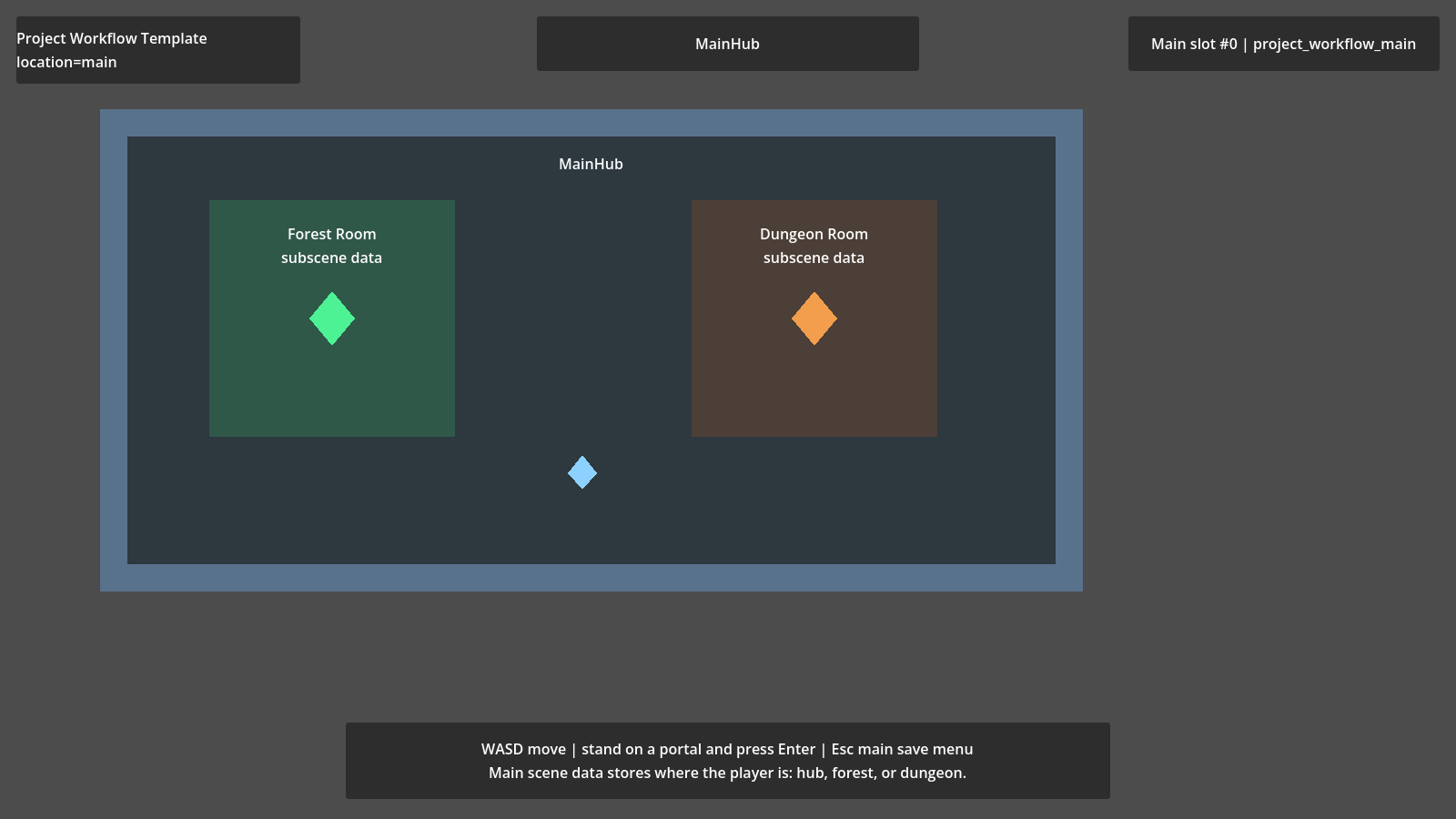
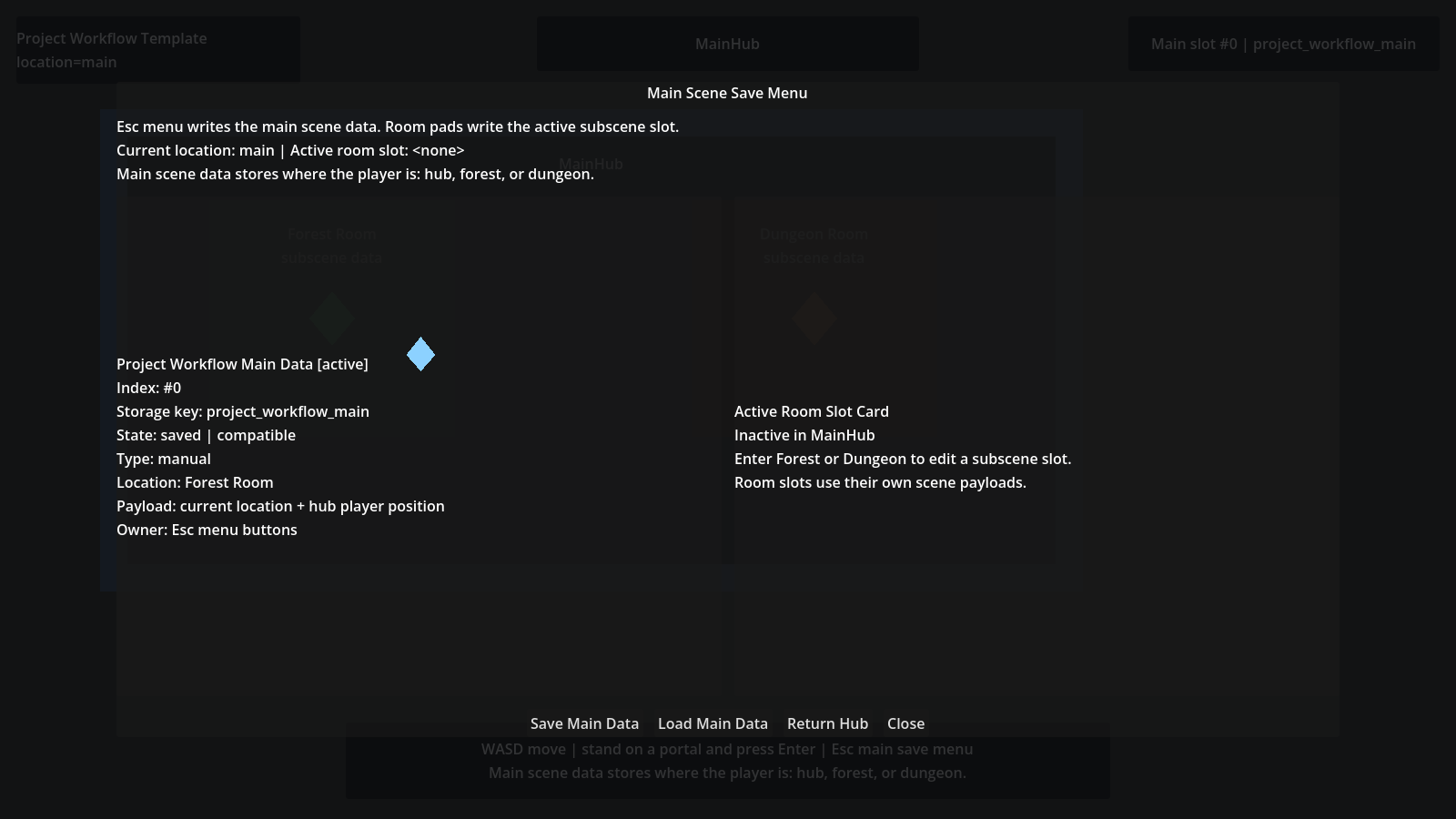
Press Esc to open the main scene save menu. This menu saves and loads the project-level location data. It does not replace the room pads that write subscene payloads.
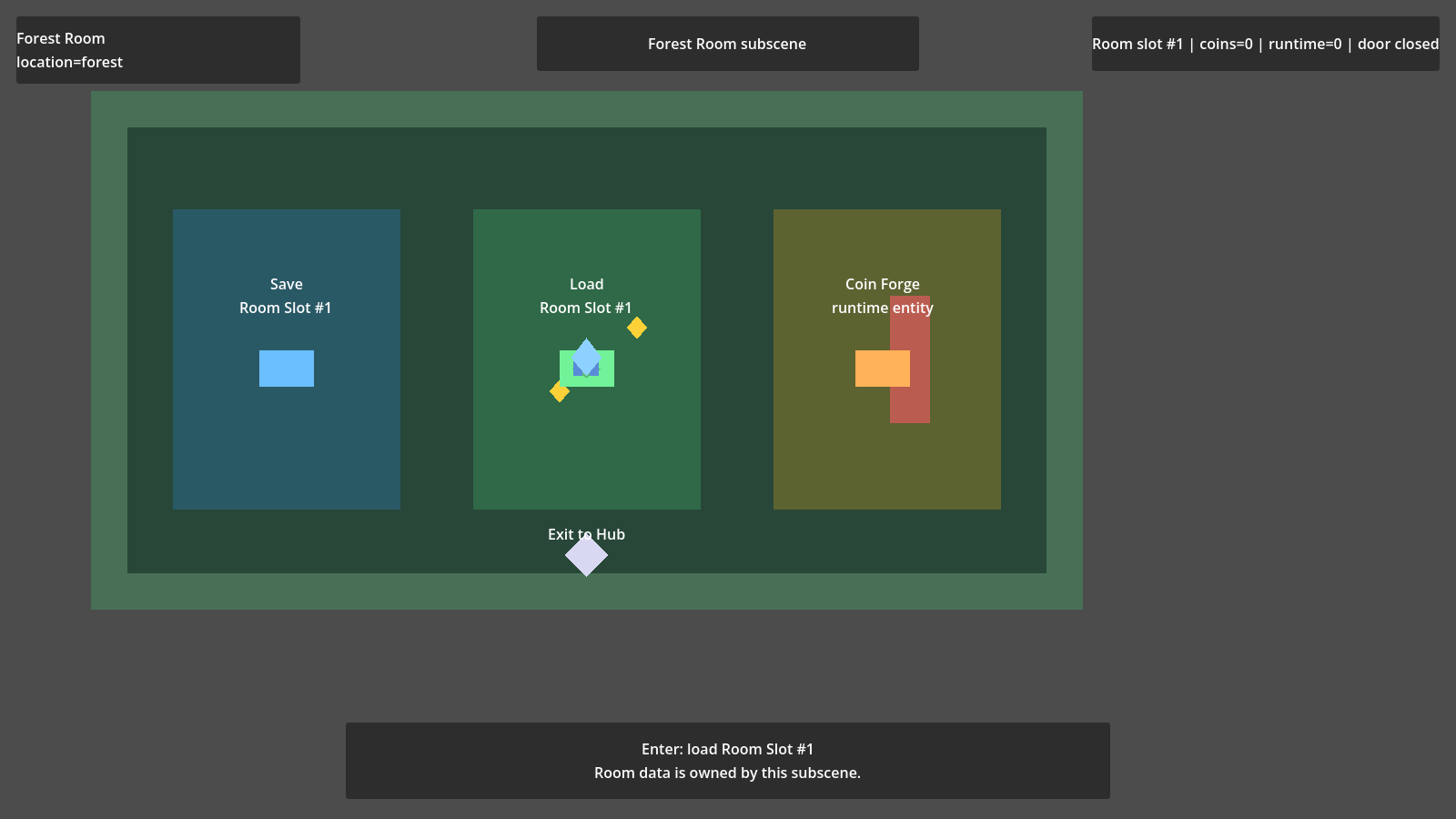
Inside a room, the room data owns local player state, room state, and runtime entities such as coins.
It demonstrates:
- a screen-space save menu
- active slot selection
- manual save/load/delete interactions
- separate room slots
- autosave and checkpoint writes to the active slot
- typed room data
- player
SaveFlowNodeSource - runtime coins through
SaveFlowEntityCollectionSource - entity restore through a factory
What To Do
- Run the scene.
- Move the player.
- Use the room interactions to create or collect coins.
- Select a manual save slot.
- Save the slot.
- Mutate the room again.
- Load the same slot.
- Confirm player state, room state, and runtime coins return to the saved state.
- Trigger autosave/checkpoint and confirm the active slot card updates.
What To Inspect In The Scene Tree
Look for these concepts in the node tree:
- a main scene Scope or save graph boundary
- room/subscene data Sources
- a player
SaveFlowNodeSource - runtime entity container
SaveFlowEntityCollectionSource- entity factory
- slot workflow helper or script using
SaveFlowSlotWorkflow - screen-space UI that reads save cards instead of owning gameplay state
If you understand this scene, you understand the intended Lite workflow.
Pipeline Notifications
Open:
res://demo/saveflow_lite/recommended_template/scenes/pipeline_notifications/pipeline_notification_demo.tscn
Use this scene when you want to react to save/load events.
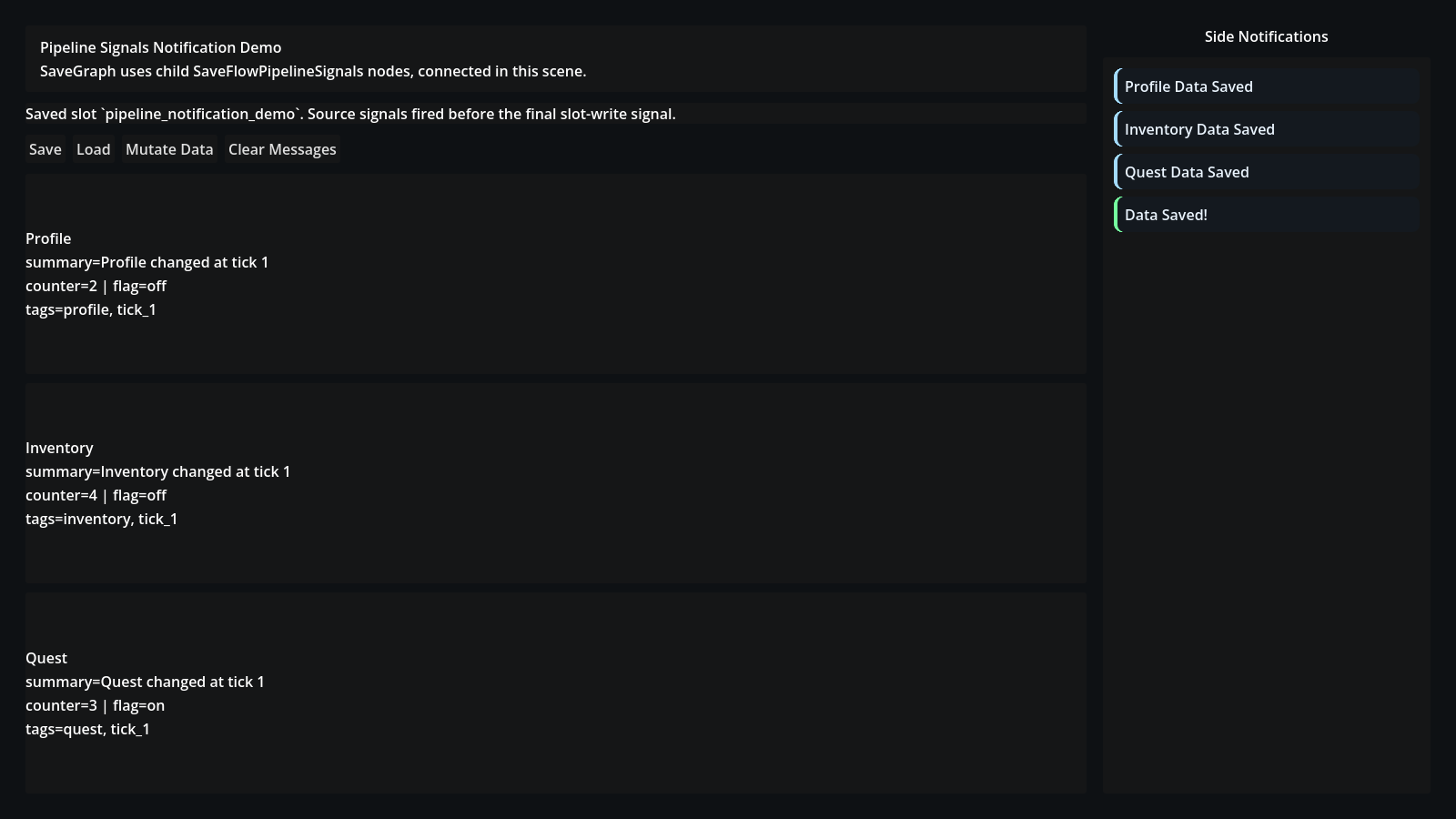
It demonstrates:
SaveFlowPipelineSignals- source-level save/load callbacks
- final save feedback such as "Data Saved"
- UI notifications that are rebuilt from events rather than serialized
What To Inspect
Look for:
- the Scope or Source being observed
- the
SaveFlowPipelineSignalsnode - connected signal handlers in the inspector
- UI nodes that display messages
The key lesson:
Do not subclass every Source just to show UI feedback.
Use pipeline signals for side effects and presentation.
C# Workflow
Open:
res://demo/saveflow_lite/recommended_template/scenes/csharp_workflow/csharp_workflow_demo.tscn
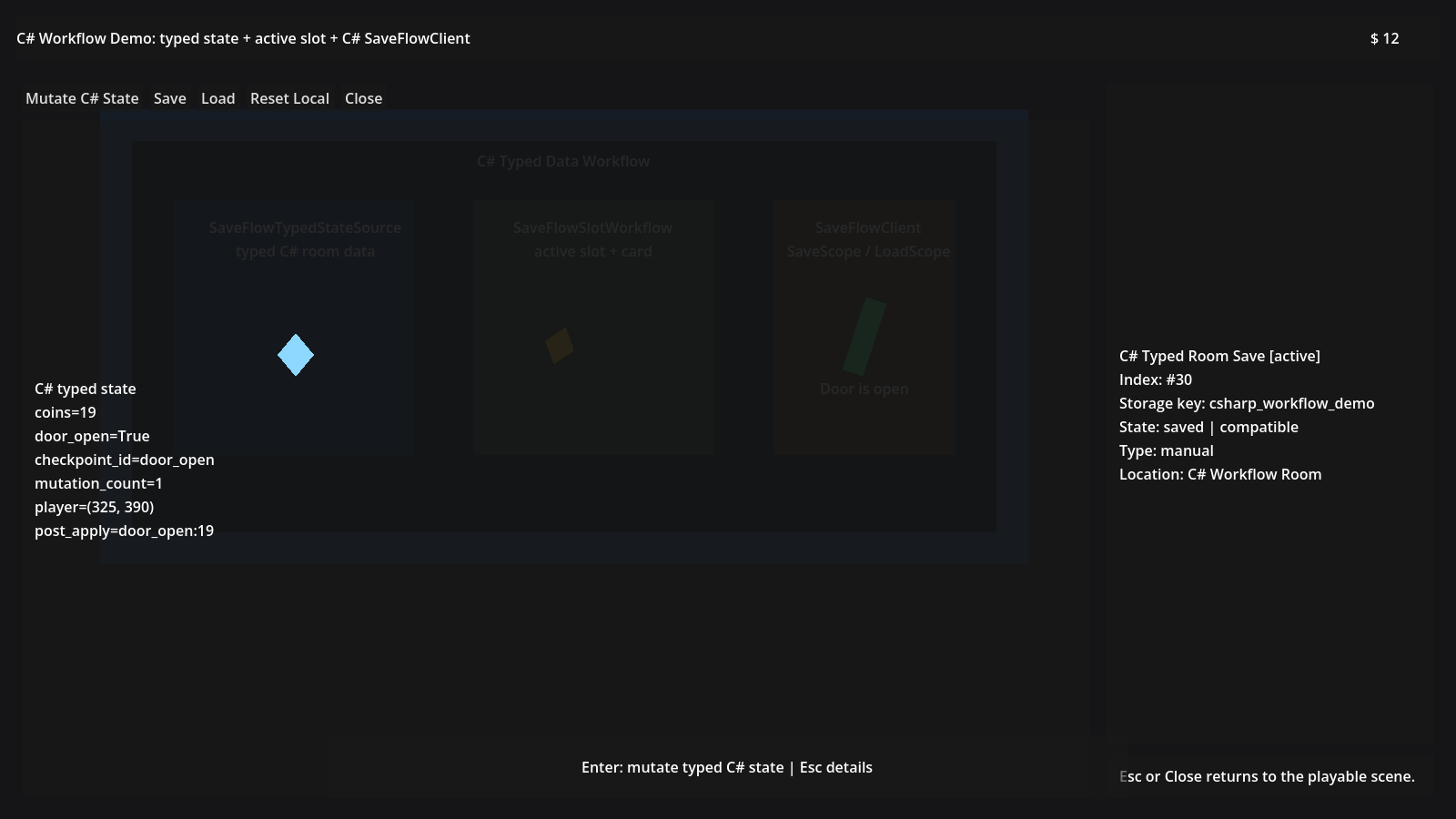
Use this scene when your project writes gameplay code in C#.
It demonstrates:
- direct C# typed state through
SaveFlowTypedStateSource - source-generated
System.Text.Jsonmetadata SaveFlowSlotWorkflowSaveFlowSlotCardSaveFlowClient.SaveScope()
What To Inspect
Look for:
- the C# Source node in the scene tree
- the typed state class
- the JSON context class
- the C# script that calls
SaveFlowClient - the Scope being saved
The key lesson:
C# should still use the same scene-authored Save Graph.
The C# wrapper is a language bridge, not a separate save system.
QA And Historical Sandboxes
The older sandboxes are still useful, but they are not the first learning path. Use them after the recommended template when you want to verify edge cases, regressions, or older integration shapes.
Plugin Sandbox
Open:
res://demo/saveflow_lite/plugin_sandbox/plugin_sandbox.tscn
Use it for:
- quick runtime smoke testing
- basic scene save/load behavior
- checking DevSaveManager behavior in a simple scene
Do not use it as the main template for a real project. The recommended template is clearer.
Complex Sandbox
Open:
res://demo/saveflow_lite/complex_sandbox/complex_sandbox.tscn
Use it for:
- mid-size save graph pressure testing
- player/world/party/settings domain examples
- strict-load and missing-target behavior
- understanding why runtime entities need an entity collection/factory seam
This sandbox is useful when you already understand the basics.
Zelda-Like Sandbox
Open:
res://demo/saveflow_lite/zelda_like/scenes/zelda_like_sandbox.tscn
Use it for:
- room switching
- top-down gameplay state
- animation state
- room tables
- runtime entity restore
- demo-specific formal/dev save roots
This is a richer gameplay sandbox. It shows why more complex projects need clear save roots and domain boundaries.
Which One Should I Copy?
Copy from the recommended template first.
Use this rule:
- copy Recommended Project Workflow for normal project setup
- copy Pipeline Notifications for save/load event UI
- copy C# Workflow for typed C# state
- study sandboxes for edge cases, pressure tests, and legacy behavior
What Not To Copy Blindly
Do not copy:
- old sandbox-only storage roots unless your project also hosts multiple demos
- UI-only helper patterns when your real project can rebuild UI from data
- broad scene scanning when a
SaveFlowScopegives a clearer domain - runtime entity handling without
SaveFlowEntityCollectionSource
The point of the examples is not to make every project look identical. The point is to help you pick the smallest clear SaveFlow shape for your own Godot scene.